No mouse needed!
🆕 New options in QuicKey 2.0
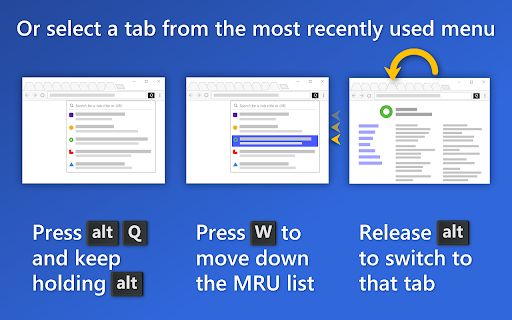
Now you can press a single shortcut key (ALT-Q by default) to navigate recent tabs in a popup window, just like the ALT-TAB menu! Keep holding ALT while pressing Q to move the selection, then release ALT to switch to the selected tab.
*️⃣ Switch between the most recently used tabs
⚠️ NOTE: If you've been using QuicKey before 2.0, you'll need to set keyboard shortcuts for
the new commands that show the popup window, as they won't be set by default.
Opening QuicKey displays a list of the last 50 tabs you've visited, in order of recency. (When you first start using QuicKey, though, it won't know what's recent, so the list will be empty.) Click a tab to switch to it, or use one of the keyboard shortcuts below to navigate the recently used tab history.
🔶 To pick a recent tab from the MRU list in the popup window:
• Press ALT-Q (CTRL-W on macOS) but keep holding the modifier key.
• Press Q or ↓ to move down through the list of recent tabs.
• Press SHIFT-Q or ↑ to move up.
• Release ALT (or CTRL) to switch to the selected tab.
• You can also highlight an item with the mouse, then release ALT/CTRL to go to that tab.
🔶 To quickly switch between the two most recent tabs:
• Press ALT-Z (CTRL-S on macOS).
You can also view each tab as you navigate through the recents list, taking as long as you want on each, and then release the modifier key to stay on that tab. Make sure the shortcuts are set by right-clicking the QuicKey icon and selecting Options. Then click "Keyboard shortcuts", scroll down, and click "Change browser shortcuts". Look for the "Switch to the previous/next tab" commands and set these suggested shortcuts: ALT-A and ALT-S, respectively (CTRL-D and CTRL-S on macOS).
🔶 To navigate while viewing each recent tab:
• Press ALT-A (CTRL-D on macOS) to display the previous tab, but keep holding the
modifier key. The popup window will stay open on the right side of the screen.
• Press A again to move down the list, displaying each tab in turn.
• Press S to move back up.
• Release ALT (or CTRL) to stay on the current tab.
• Press ALT-A again to switch back to the tab you initially started on.
*️⃣ Search for a tab quickly
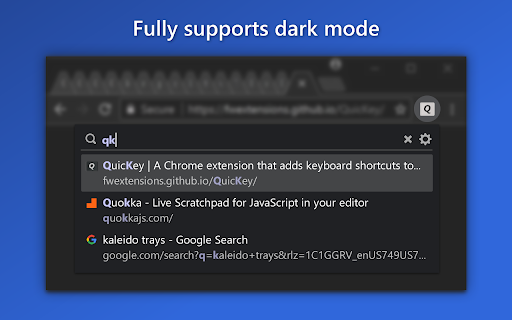
Unlike other tab switchers, QuicKey uses a Quicksilver-style search algorithm to rank the results, where contiguous matches at the beginning of words are higher in the list, as are matches against capital letters. So you should only have to type a few letters to quickly find the right tab.
🔶 To search for a recent tab in the popup window:
• Press and release ALT-W (CTRL-W on macOS).
• Type one or more search terms, separated by spaces.
• Use one of the shortcuts below to navigate the list.
• Press ENTER to switch to the selected tab.
List navigation shortcuts:
• ↓, SPACE or CTRL-N/J: move down the list
• ↑, SHIFT-SPACE or CTRL-P/K: move up the list
• PG DN: page down the list
• PG UP: page up the list
• END: go to the bottom of the list
• HOME: go to the top of the list
• ENTER: switch to the selected tab
• ESC: clear the search or close the popup window or menu
Recently used tabs get a slight boost in the search results ranking, so getting back to a tab you were just using should require typing fewer letters.
Typing a space lets you enter multiple tokens in the query, all of which must match either the tab's title or URL, in any order.
If you type more than 25 letters, which should be plenty to find the right tab, QuicKey switches to an exact string search to stay fast.
*️⃣ Customize shortcuts and other options
To customize how QuicKey behaves, click the gear icon in the popup window or menu, or right-click its icon on the toolbar and select Options. There you can:
• Customize keyboard shortcuts
• Change the popup window's behavior
• Hide closed tabs from the search results
• Limit tab navigation or search to the current browser window
• Mark tabs in other browser windows with an icon
• Show the number of open tabs
• Restore the last search query when reopening the popup window or menu
• Use pinyin to search for Chinese characters
When a QuicKey update adds new settings, the gear icon will display a red dot to let you know.
*️⃣ Limit navigation to the current browser window
If you have multiple browser windows open, you may want to navigate among only the recent tabs that are in the current window. To enable this behavior, open the Options page to the General tab and select "Limit recent tabs to the current browser window". Pressing the shortcuts for "Switch instantly between the two most recent tabs" or "Switch to the previous tab" will then switch only between recent tabs in the current window.
You can also limit searching for tabs to the current browser window.
*️⃣ Close and reopen tabs
To close the selected tab, press CTRL-W (CMD-CTRL-W on macOS, CTRL-ALT-W on Linux). Or hover over a tab and click the X button on the right side of the list.
When you open QuicKey, the 25 most recently closed tabs are listed below the recent tabs and shown in a faded state with a clock icon. They are also returned when you type a query, though their rank in the list of results is lower than open tabs. Click a closed tab to reopen it in its original location and with all of its browsing history intact.
If you don't want any closed tabs to be shown, open the QuicKey options page, then uncheck "Include recently closed tabs in the search results" in the General section. You can also remove the selected closed tab from the browser's history by pressing CTRL-W (CMD-CTRL-W on macOS) or by clicking its X button on the right side of the list.
*️⃣ Move tabs
You can move tabs to the left or right of the current tab, making it easy to pull tabs from other windows into the current one, or to rearrange tabs without using the mouse.
• Press CTRL-[ to move the selected tab to the left of the current one.
• Press CTRL-] to move it to the right.
The CTRL key should be used on both Windows and macOS. Note that you cannot move tabs between normal and incognito windows.
*️⃣ Distinguish tabs with identical titles
A tab that has the same title as other open tabs will display a number to indicate its left-to-right position among those other tabs. For instance, if you open tabs for two different Google Drive accounts, they'll both be titled "My Drive - Google Drive". But the one on the left will show a "1" next to its title in the list and the one on the right will show a "2". This makes it easier for you to select the tab you want when you know how they're organized in your window.
*️⃣ Search bookmarks
To find a bookmark, type "/b" and a space in the search box, then part of the bookmark's name or URL.
• Press ENTER to open it in the current tab.
• Press CTRL-ENTER (CMD-ENTER on macOS) to open it in a new tab in
the current window.
• Press SHIFT-ENTER to open it in a new window.
As soon as you type "/b ", your bookmarks will be listed in alphabetical order, in case you want to browse through them. Since bookmarks can be organized into folders, the folder path is shown before each bookmark's title. The folder path can be hidden by unchecking "Show the folder path to each bookmark in its title" on the Options page.
*️⃣ Search the browser history
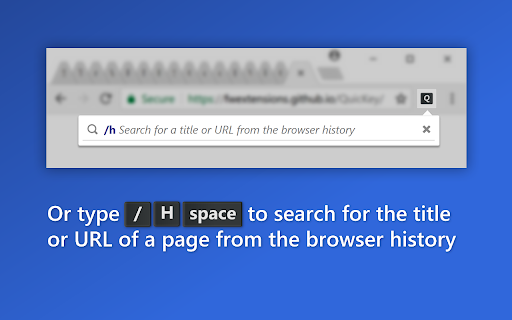
To find something in the last 2000 pages of your browser history, type "/h" and a space in the search box, then part of the page's name or URL.
The same CTRL-ENTER (CMD-ENTER on macOS) and SHIFT-ENTER shortcuts will open the visited page in a new tab or window.
As soon as you type "/h ", the pages from your history will be listed in order of recency, so you can get back to a page you had recently visited without having to remember its name.
*️⃣ Delete bookmarks and history items
To delete the selected bookmark or history item, press CTRL-W (CMD-CTRL-W on macOS). Or hover over an item and click the X button on the right side of the list. You'll be asked to confirm the deletion of bookmarks.
*️⃣ Incognito mode
To switch to incognito tabs as well as normal ones, right-click the QuicKey icon and select Options from the menu. Scroll to the very bottom of the General section and then click the "Change incognito settings" button. On the extensions page that opens, scroll down to the "Allow in incognito" option and click the toggle button next to it.
Tabs in incognito mode display the incognito icon under the page's favicon, so you can distinguish a normal tab from an incognito one with the same title.
*️⃣ Copy a URL or title
You can also copy the URL and title of the selected tab, bookmark or history item:
• Press CTRL-C (CMD-C on macOS) to copy just the URL.
• Press CTRL-SHIFT-C (CMD-SHIFT-C on macOS) to copy both the item's
title and its URL, one per line.
*️⃣ Privacy policy
When first installed, QuicKey asks for these permissions:
➤ "Read and change your browsing history on all your signed-in devices"
QuicKey uses this permission to let you search the titles and URLs of
the open tabs, as well as pages from your history. The "all your
signed-in devices" part is there only so that recently closed tabs can be
restored with their full history. The only time QuicKey changes your
browsing history is when you choose to delete a history item.
➤ "Read and change your bookmarks"
QuicKey uses this permission to let you search the titles and URLs of
your bookmarked pages. The only time it changes your bookmarks is
when you choose to delete one.
QuicKey can't access or manipulate the content of any pages you visit and doesn't transmit any information other than some anonymized diagnostic data.
If you right-click the QuicKey icon on the toolbar, there's a message saying "Can't read or change site's data", which is a bit misleading, since it can't read or change *any* site's data, not just the current one.
*️⃣ Support and source code
Open the Options page and click the About section to get quick access to these links:
Get more information at https://fwextensions.github.io/QuicKey/
Report a bug or request a feature at https://fwextensions.github.io/QuicKey/support/
View the release history at https://fwextensions.github.io/QuicKey/releases
See the source code at https://github.com/fwextensions/QuicKey