
Description
Point‑Click‑Comment
Give busy stakeholders a single button to drop crystal‑clear visual feedback into your team’s Slack channel. PCC turns any webpage into a feedback canvas: click the extension, hover with the neon crosshair, lock onto an element, and type a note. The extension grabs the visible viewport, highlights the selected element, overlays a stylish sticky note with the stakeholder’s comment, and sends the composite screenshot to your Slack webhook (classic /services or Workflow Builder /triggers). Screens live on ImgBB so the workflow stays serverless—no accounts, no new tools, just instant context in the tools your team already uses.
Why teams love PCC
- One-click feedback mode with live DOM highlighting and crosshair cursor.
- Modern in-page modal for comments; reminders ensure webhook/ImgBB setup is complete.
- Annotated screenshots composed entirely in-browser via OffscreenCanvas.
- Automatic ImgBB upload and Slack message (blocks or workflow variables).
- Works with Workflow Builder: send imageUrl, commentText, and pageUrl into your custom flows.
- Zero external metadata collection—only webhook + ImgBB key stored locally in Chrome storage.
Perfect for
Design reviews, exec approvals, stakeholder QA, or any moment when “Can you screenshot that?” slows down real work. Load the extension, configure Slack + ImgBB once, and let your leadership point, click, and comment.
---
Setup in seconds
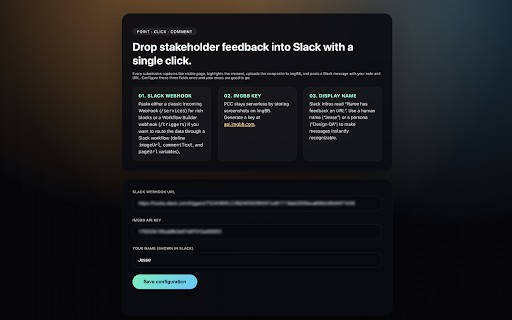
Point‑Click‑Comment needs two values the first time you open the Options page:
1. Slack Webhook URL – either a classic Incoming Webhook (https://hooks.slack.com/services/...) or a Slack Workflow Builder webhook (https://hooks.slack.com/triggers/...).
2. ImgBB API Key – PCC uploads screenshots to ImgBB so everything stays serverless. Create a free key at https://api.imgbb.com/ .
Paste both into the extension’s Options screen, add the display name you want shown in Slack, and you’re ready to collect feedback.
Using Slack Workflow Builder webhooks
Prefer to run PCC through a Slack workflow?
1. Open Workflow Builder → Create → From a webhook.
2. Add three text variables: imageUrl, commentText, pageUrl. PCC automatically sends these each time someone submits feedback (with the intro “Name has feedback on URL” already prefixed).
3. Add your workflow steps (e.g., “Send a message”) and insert the variables wherever you want the screenshot link, comment, or page URL to appear.
4. Copy the generated https://hooks.slack.com/triggers/... URL and paste it into PCC’s Options page.
That’s it—every note your stakeholders leave is captured, annotated, uploaded to ImgBB, and piped through Slack via the webhook you choose.

Reviews
Loading reviews...
Permissions (4)
Permissions
activeTabℹ Can access the current tab when you click the extension scriptingℹ Can inject scripts into web pages storageℹ Can store data locally in your browser tabsℹ Can see your open tabs and their URLs
Details
| Version | 0.1.2 |
| Updated | Nov 21, 2025 |
| Size | 1012KiB |
| First Seen | Mar 22, 2026 |
More by emptycan.com

Popular in communication

Loom – Screen Recorder & Screen Capture
by Loom
8M
★ 4.58
communication
8M
★ 4.58
communication

ScreenPal - Screen Recorder & Video Editor
by ScreenPal (formerly Screencast-O-Matic)
100K
★ 4.31
communication
100K
★ 4.31
communication

Reminders for Google Calendar™
by SMS Reminder for Google Calendar™
50K
★ 3.64
communication
50K
★ 3.64
communication

HTML Editor for Gmail by cloudHQ
by cloudHQ
40K
★ 4.06
communication
40K
★ 4.06
communication

Tab Translate
by Tab Translate
20K
★ 4.58
communication
20K
★ 4.58
communication
Popular Extensions

Adobe Acrobat: PDF edit, convert, sign tools
by Adobe Inc.
330M
★ 4.40
workflow
330M
★ 4.40
workflow

Chrome Remote Desktop
by Chrome Remote Desktop Release Managers
38M
★ 3.14
workflow
38M
★ 3.14
workflow

Cisco Webex Extension
by cisco.chromestore
24M
★ 2.34
social
24M
★ 2.34
social

Kami for Google Chrome™
by Kami
17M
★ 4.56
education
17M
★ 4.56
education

Read&Write for Google Chrome™
by Texthelp
17M
★ 3.44
accessibility
17M
★ 3.44
accessibility