
Description
Vtiger Aide is a feature that lets you have a seamless experience of attending meetings, taking notes, and creating action items. It is a Google Chrome extension that you can install with a few simple steps. Let us dive into the installation process.
**Managing Events**
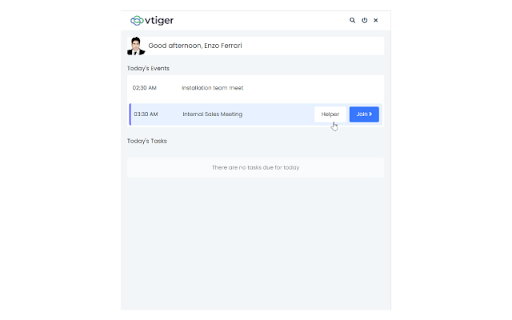
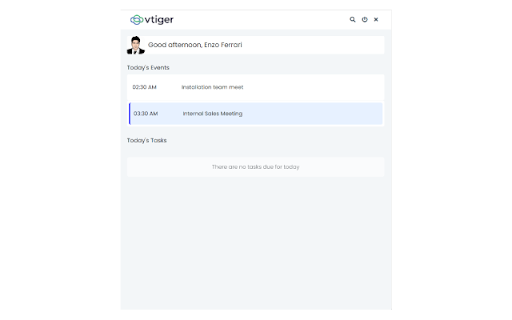
Under the Today’s Events section, you see the events whose start date is the current date.
* Clicking on an event under Today’s Events takes you to the event’s Detail View.
* If it’s a Google Meet or Zoom Meet or Microsoft Teams meeting or Webex meetings event, you will see an option to join the meeting. Clicking on Join> will take you to the meeting link.
If the event is [Google Meet](https://help.vtiger.com/article/146450020-Using-Google-Meet) or [Zoom Meet](https://help.vtiger.com/article/148048597-Zoom-Meetings-Integration) or Microsoft Teams or Webex, you will see the Helper option. Read further to learn more.
**Helper Button**
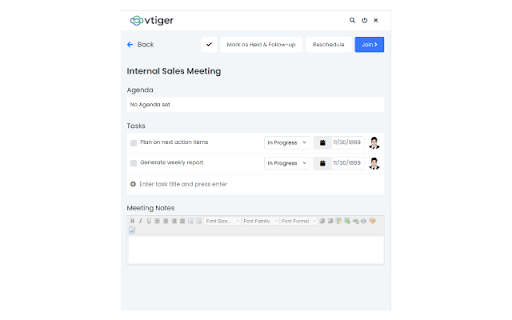
Click the Helper button. There are multiple actions that you can take with its help.
* Click the checkmark on the left to mark the event as Held (closed).
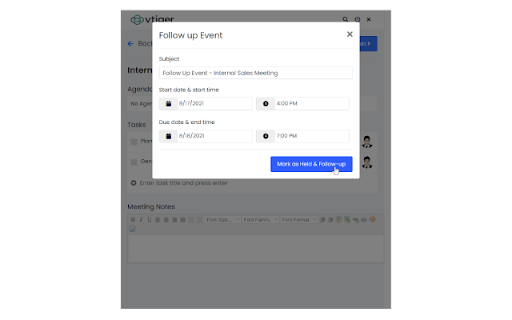
* Mark as Held & Follow up - This option allows you to close an event (mark as Held) and create a follow-up event.
* Reschedule - This option lets you reschedule the event by selecting new start and end dates.
* Join> - You can join the meeting by clicking this button.
* Tasks - Specify the task title and press Enter to create a task (action item). You can additionally set the task status, due date, and assignee.
* Meeting notes - Add the meeting minutes here. This gets copied to the event record’s description.
If the event is of type Zoom Meet, Webex also, you get the following additional options:
* The number of invitees who joined vs. the number of invitees who did not join the meeting
* A list of invitees who joined or did not join the meeting
* An option to alert the invitees who did not join the meeting
**Managing Tasks**
The Today’s Tasks section shows tasks whose start date is the current date. Here are the actions you can perform on the task.
* Mark task as Completed
* Edit task name
* Change task status
* Change task’s due date
**Searching records**
Apart from managing your events and tasks, you can also search for relevant records from Vtiger Aide.
Follow these steps to search for records:
* Open Vtiger Aide from Google Chrome.
* Click the Search icon on the top.
* Choose a module from the drop-down on the left.
* Type a keyword in the search bar.
The search results are shown automatically as you type.
You can access Vtiger Aide from not just the CRM screen but also from any tab or page on your browser. You can be watching Ted Talks on YouTube and using Vtiger Aide at the same time.
**About Vtiger CRM**
Vtiger CRM empowers Sales, Marketing, Customer Service, and Implementation teams with the power of one view on deals, cases, contacts, and tasks.
Over 300,000 businesses use Vtiger to create delightful customer experiences that measurably improve business revenue, customer loyalty, and team performance.
**Questions or suggestions?**
Email us at support@vtiger.com

Reviews
Loading reviews...
Permissions (4)
Permissions
activeTabℹ Can access the current tab when you click the extension scriptingℹ Can inject scripts into web pages storageℹ Can store data locally in your browser tabsℹ Can see your open tabs and their URLs
Details
| Version | 1.3 |
| Updated | Jun 29, 2025 |
| Size | 5.84MiB |
| First Seen | Mar 25, 2026 |
More by Vtiger


Popular in workflow

Adobe Acrobat: PDF edit, convert, sign tools
by Adobe Inc.
331M
★ 4.40
workflow
331M
★ 4.40
workflow

Chrome Remote Desktop
by Chrome Remote Desktop Release Managers
38M
★ 3.14
workflow
38M
★ 3.14
workflow

Microsoft Single Sign On
by Microsoft
36M
★ 2.27
workflow
36M
★ 2.27
workflow

MetaMask
by metamask
13M
★ 2.68
workflow
13M
★ 2.68
workflow

Microsoft Power Automate
by Microsoft Corporation
10M
★ 1.99
workflow
10M
★ 1.99
workflow
Popular Extensions
Adobe Acrobat: PDF edit, convert, sign tools
by Adobe Inc.
331M
★ 4.40
workflow
331M
★ 4.40
workflow
Chrome Remote Desktop
by Chrome Remote Desktop Release Managers
38M
★ 3.14
workflow
38M
★ 3.14
workflow
Microsoft Single Sign On
by Microsoft
36M
★ 2.27
workflow
36M
★ 2.27
workflow

Cisco Webex Extension
by cisco.chromestore
24M
★ 2.34
social
24M
★ 2.34
social

Kami for Google Chrome™
by Kami
19M
★ 4.56
education
19M
★ 4.56
education